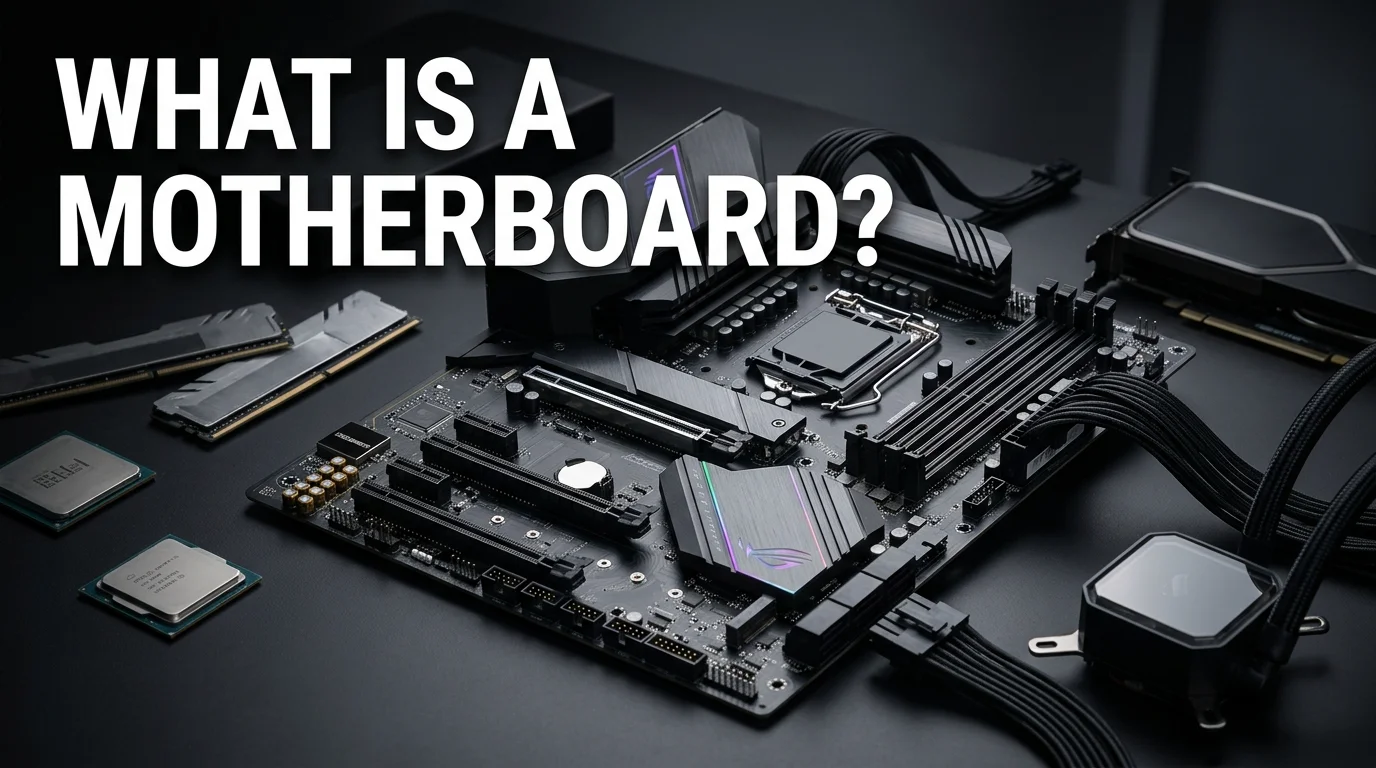
Open a desktop PC, and one large slab of green or black fiberglass fills the case. Every other part plugs into it. So what is a motherboard, and why does it deserve a real decision instead of whatever the shop throws in? This guide gives you the parts, the sizes in inches, the socket rules, and honest list prices in USD.
The short answer: A motherboard is the main printed circuit board inside a computer. It holds the processor socket, memory slots, expansion slots, and storage connectors, and routes power and data among them. Nothing reaches anything else without it, so the board you pick fences in almost every other choice you make.
At a Glance: What the Board Holds and What It Costs
Quick reference for a 2026 desktop build
| Item | Details |
|---|---|
| Other names | Mainboard, main board, system board, logic board on Macs |
| Core job | Connects and powers the processor, memory, storage, graphics, and every port |
| Common sizes | ATX 12 x 9.6 inches, Micro-ATX 9.6 x 9.6 inches, Mini-ITX 6.7 x 6.7 inches |
| Current sockets | AMD AM5, Intel LGA1851 |
| Chipset tiers | A620, B840, B850, X870, X870E on AM5; H810, B860, Z890 on LGA1851 |
| Typical list price | About $90 to $200 for most builds, $350 and up for enthusiast models |
| Practical lifespan | Seven to ten years, usually retired when its socket goes obsolete |
Key Takeaways
- The board is the PC’s wiring harness. It computes nothing and decides everything about what fits.
- Socket first, chipset second. A chip made for AM5 will not drop into LGA1851.
- Size is a hard constraint. Measure your case before you shop.
- Most builds are well served between $90 and $200. Spending past that buys features, never raw speed.
- Memory generation is the wall. A DDR4 platform cannot take DDR5 sticks.
What Is a Motherboard Actually Doing?
Three jobs run at once on every board, and none of them are glamorous. Power comes first. The 24-pin cable and the 8-pin processor cable feed the board. Its voltage regulator circuits then step that supply down to the fraction of a volt a modern chip runs on.
Data comes second. Copper traces baked into six or eight fiberglass layers do the carrying. They run PCIe lanes to your graphics card, memory channels to the DIMM slots, and USB signals to the back panel.
Startup comes third. Firmware in a small chip runs POST, the power-on self-test, then hands control to your drive. What follows that handoff is software territory, and choosing the best operating system for a PC is its own decision.
The Parts of the Board, Labeled
Pull the side panel, and you can find all of these without a manual:
- Processor socket. The square array of pins or pads under the cooler. Its name, AM5 or LGA1851, is the most restrictive spec on the whole component.
- DIMM slots. Two or four long clips for memory. On a four-slot board, fill the second and fourth first for dual channel.
- Chipset. A controller under a low heatsink that adds USB, storage, PCIe and network connections beyond the processor’s own.
- PCIe slots. The long one nearest the socket is wired for a graphics card. Shorter slots take capture and sound cards.
- M.2 and SATA. Short horizontal sockets for NVMe drives, plus flat right-angle connectors for older ones.
- VRM and heatsinks. The chokes and power stages ringing the socket, plus the finned blocks cooling them.
- Fan headers. Little four-pin posts around the edges. They let the board read each fan’s speed and throttle it, and our fixes for a loud computer fan start right there.
- Front panel headers. The fiddly pin cluster along the bottom edge for the power switch and case LEDs.
- Rear I/O. The fixed panel of USB, audio, video, and network ports at the back.
- CMOS battery. A coin cell that keeps firmware settings alive while the machine sits unplugged.
Motherboard vs CPU: Who Does What
People mix these two up constantly, and the split is simple. The processor thinks. The board moves things around so it has something to think about.
A chip does arithmetic and holds the cache. Swap in a faster one and frames per second climb. The board underneath does none of that, so a pricier model will not raise benchmark scores. It controls which chips fit, how much power they draw, and how many drives and memory sticks you can add.
Sockets and Chipsets Decide Which Chip Fits
The socket is mechanical. AM5 accepts AMD’s current desktop range, LGA1851 accepts Intel’s, and no adapter bridges the two. Get it wrong, and the parts will not mate.
Chipset is the feature tier stacked on top. The AM5 ladder runs A620, B840, B850, X870, and X870E, each rung adding PCIe lanes and overclocking headroom. Intel’s LGA1851 ladder includes H810, B860, and Z890; only Z890 unlocks overclocking. A mid-tier board covers what most people need.
Then there is the VRM, the power stage feeding the socket. Nobody explains this one in plain language, and it matters. A weak power stage supplies a high-core-count chip fine at idle, then sags under a long render and lets the boost clock drop. AM5 runs everything from a six-core part up to the 16-core Ryzen 9 9950X3D. Match the board tier to the chip you plan to fit, not to the cheapest one that boots.
Form Factors: ATX, Micro-ATX, and Mini-ITX
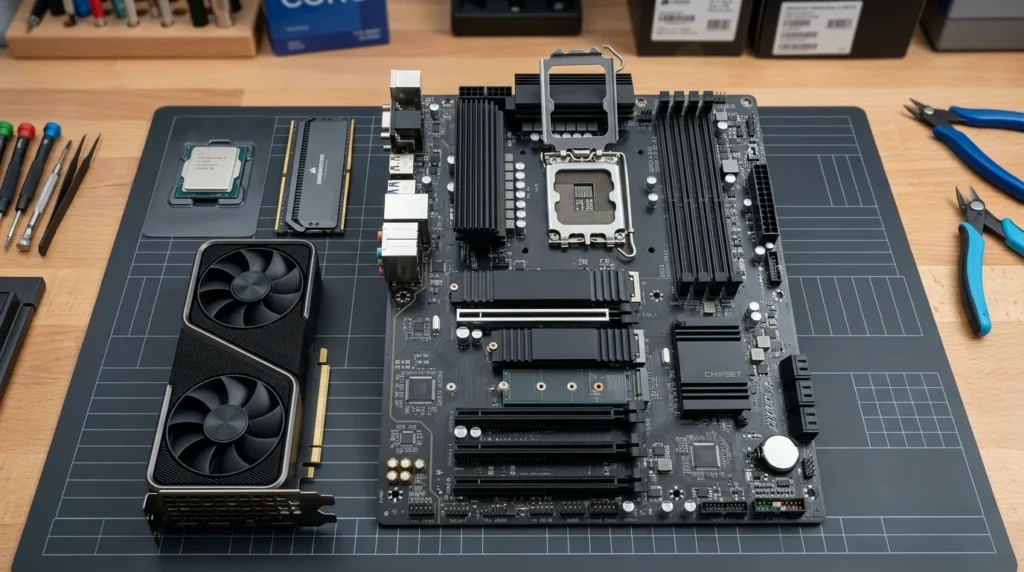
Most explainers list the components but never print the exact dimensions, which is the one number your case cares about. Here they are.
Desktop form factors compared
| Form factor | Size (inches) | Size (mm) | RAM slots | PCIe slots | M.2 slots |
|---|---|---|---|---|---|
| E-ATX | 12 x 13 | 305 x 330 | 4 to 8 | 7 or more | Varies |
| ATX | 12 x 9.6 | 305 x 244 | 4 | Up to 7 | 3 to 5 |
| Micro-ATX | 9.6 x 9.6 | 244 x 244 | 2 to 4 | Up to 4 | 2 to 3 |
| Mini-ITX | 6.7 x 6.7 | 170 x 170 | 2 | 1 | 1 to 2 |
ATX is the default for a tower and the easy pick for a first build. Micro-ATX is about 2.5 inches shorter and costs $20 to $40 less than an equivalent ATX board. Mini-ITX costs $30 to $60 extra and limits you to two memory sticks and one slot. E-ATX suits multi-drive workstations and adds $150 to $300.
Cases list which sizes they accept. A smaller board always fits a larger case, never the reverse.
How Much Should You Pay in 2026?
These are US list prices before local sales, and they move with stock.
- Under $100. Entry boards for office machines and light gaming. B650 ATX models start around $90, Z890 ATX around $110. Expect one M.2 slot and no overclocking.
- $100 to $200. The sweet spot: Wi-Fi, two or three M.2 slots, solid power delivery. Nearly every gaming or work build belongs here.
- $200 to $350. Heavier VRM cooling, faster networking, Thunderbolt on some models.
- $350 and up. Enthusiast territory, with niche halo models reaching $800. You pay for lanes and looks.
No top result says this plainly, so we will. Past $200, you are buying features, not frames. Put the difference into the graphics card or a bigger drive.
How to Find Out Which Board You Have
You do not need a screwdriver. Every ranking guide still tells readers to run the old wmic command, and Windows 11 has retired it, so those instructions now fail. Use one of these instead.
- Press Windows and R, type msinfo32, then read the BaseBoard Manufacturer and BaseBoard Product lines.
- Open PowerShell and run Get-CimInstance -ClassName Win32_BaseBoard. That is the direct replacement, and it prints the maker, model, serial, and version at once.
- Look at the board itself. The model sits silkscreened between the socket and the memory slots on nearly every desktop unit.
Warning Signs of a Failing Board
Boards fail quietly more often than dramatically. Watch for these:
- Fans spin, nothing appears on screen, and POST never completes.
- Repeated beep codes, or a debug LED stuck on memory or processor.
- Capacitors with domed or leaking tops near the socket.
- Random shutdowns that persist after you rule out the power supply.
- USB ports or SATA connectors dying one by one.
- A scorched smell or a brown mark on the fiberglass.
Test the power supply and memory first. Both cost less, and both cause the same behavior.
What You Can Upgrade Without Swapping the Board
Plenty, as long as you stay inside the platform you own. Definition pages rarely separate the two cases, so here is the split.
Safe on your current board: more memory of the same generation, extra or larger drives, a new graphics card, and a better cooler. Newer processors sometimes work too, provided the maker supports them with a firmware update. Check that support list before buying a chip.
Forces a full swap: moving from DDR4 to DDR5, changing socket, or jumping to a processor family your firmware never covered. That is a board, memory, and chip all at once, which is why builders call it a platform upgrade.
Laptops break these rules entirely. Their boards carry the processor, the memory, and often the storage soldered in place, so almost nothing comes out. Choosing the right workstation laptop up front matters far more than any upgrade plan.
Your Next Step
Decide in this order, and the rest falls out. Pick the processor family, note its socket, then choose a chipset tier that matches your workload. Confirm the size fits your case. Write down those four answers, then browse the boards on techriyon.com that match them.
Frequently Asked Questions
It is the flat circuit board every other computer part connects to. Think of it as the wiring and plumbing of the machine, carrying power and signals but calculating nothing itself.
Yes. Mainboard, main board, and system board refer to the same component, which Apple calls the logic board.
Seven to ten years of normal use is typical, and many run longer. Most retire because their socket no longer takes current chips, not because the hardware died.
Sometimes. If the new chip uses the same socket and is on the maker’s supported list, a firmware update usually does the trick. A different socket means a new board.
Barely. Two boards with the same chip and memory land within a percent or two. Price buys ports and sturdier power delivery.