
One part of your computer decides what happens next: the CPU. Memory holds data, storage keeps it, and the screen shows it. Only this component reads instructions and acts on them, billions of times every second.
A CPU is the central processing unit, the chip that carries out the instructions in every program you run. It pulls an instruction from memory, determines what that instruction means, performs the math or logic, and then stores the result. Modern chips repeat that loop across several cores at once.
Key takeaways
- The processor runs instructions. The graphics card draws pixels. Both matter, for different jobs.
- Cores handle separate tasks at the same time, while clock speed sets how fast each core finishes one.
- Six to eight cores cover gaming and office work in 2026. Video editing and code compiling reward more.
- Good chips sell from roughly $145 to $889 right now, and the middle of that range is where the value sits.
- Cooling is part of the purchase. A hot chip slows itself down and hands back the speed you already paid for.
Processor specs, and what each number means
| Spec | What it means | Why you should care |
|---|---|---|
| Cores | Independent workers inside one piece of silicon | More cores finish more jobs at the same time |
| Threads | Work queues assigned to each core | Two per core helps apps that juggle many small tasks |
| Base and boost clock | Cycles per second, quoted in GHz | A bigger boost means faster single-task work |
| Cache | Tiny, very fast memory built into the chip | A large L3 pool lifts game frames per second |
| TDP | Heat the cooler has to move, quoted in watts | Sets the cooler and power supply you need |
| Socket | The physical fit, such as AM5 or LGA 1851 | Decides which motherboards will accept the chip |
What the processor actually does

Think of it as a fast, very literal worker. Software hands it a list of tiny orders: add these two numbers, compare them, jump elsewhere if the answer is zero. None of those steps is clever on its own. Sheer speed is what turns a pile of them into a video call or a game.
Three jobs sit underneath everything else. Arithmetic covers the math. Logic covers the yes-or-no comparisons. Control decides which instruction runs next, which is how a program follows an if statement instead of marching straight down the page.
Inside the chip: four parts worth knowing
- Control unit: reads each instruction and tells the rest of the hardware what to do with it.
- Arithmetic logic unit, or ALU: does the adding, subtracting, comparing, and bit shuffling.
- Registers: a handful of tiny slots holding the exact numbers being worked on this instant.
- Cache: L1, L2, and L3 memory sitting on the chip itself, so the worker is not stuck waiting on RAM.
Cache is the piece buyers underrate.
RAM feels quick to a human and painfully slow to silicon, so every trip out to it burns cycles. That is why a part with a big L3 pool can win games that a smaller, higher-clocked rival loses, even though the spec sheet says it should not.
How a CPU handles a single instruction
The loop has a name: fetch, decode, execute.
It runs constantly, and once you can picture it, every spec sheet gets easier to read.
- Fetch: the chip reads the next instruction from memory using an address stored in a counter.
- Decode: the control unit translates that instruction into signals the rest of the hardware understands.
- Execute: the ALU or another unit does the real work, such as adding two values.
- Write back: the result is written to a register or memory, and the counter moves to the next address.
Real hardware overlaps these stages in a pipeline and guesses which branch a program will take, so no stage sits idle. Guess right, and everything flies. Guess wrong and the pipeline empties, then refills. For the full picture, read How to Create Better Visuals.
Cores and clock speed: which number matters
A core is a complete worker.
Eight cores mean eight instructions in flight at once, assuming the software knows how to split its job. Clock speed, quoted in GHz, is how many cycles each of those workers gets per second.
Most everyday software leans on one or two cores hard and leaves the rest idle. Web browsing, spreadsheets, and plenty of games fall in that camp, so a big boost clock helps more than a big core count does. Rendering, compiling and 4K video editing behave the opposite way and split cleanly across everything you own.
Cache muddies that picture in a useful direction. AMD stacks extra L3 on some parts, pairing a modest core count with an unusually deep pool. Our AMD Ryzen 9 9950X3D breakdown shows where that trade actually pays off in frames per second.
How many cores you need in 2026
These are US street prices we tracked in August 2026, before local sales tax. They move week to week, so read them as a range rather than a promise. What they give you, and what the big vendor explainers never do, is a real number a buyer can act on.
| What you do | Cores to aim for | Example chip | Rough price |
|---|---|---|---|
| Browsing, email, office work | 6 | Ryzen 5 7500F | $145 |
| Gaming at 1440p | 6 to 8 fast cores | Core Ultra 5 250K Plus | $210 |
| Gaming plus streaming | 8 fast cores | Ryzen 7 9850X3D | $484 |
| 4K video editing, code compiling | 16 or more | Core Ultra 7 270K Plus | $264 |
| Heavy rendering, virtual machines | 32 | Ryzen 9 9950X3D2 Dual Edition | $889 |
The most expensive row is not the answer for most people. That $264 part lands within a few percent of the $889 one across a lot of real work, and the money saved buys faster storage or a better monitor. Spend where your own day is slow, not where the benchmark charts are exciting.
Heat, power, and the cooling nobody mentions
Every watt a chip draws comes back out as heat. Once its temperature climbs past the safe limit, the chip protects itself by dropping its clock speed. That is thermal throttling, and it means you quietly stop receiving performance you already paid for.
Two habits prevent it. Buy a cooler rated above the chip’s TDP rather than exactly at it, and keep case airflow moving in one clear direction. A machine that suddenly becomes noisy is usually indicating dust buildup or a failing bearing, and our guide to fixing a loud computer fan covers the common causes.
Bundled coolers are fine on 65-watt parts and marginal above that. Buy a 105-watt or 125-watt chip, and you should budget for cooling in the same order, not next month.
Case airflow counts for as much as the cooler itself.
Processor versus graphics card
These two are specialists, not rivals. Your processor takes a few complicated tasks and finishes them quickly, one after another. A GPU takes thousands of simple, identical tasks and runs them in parallel, which is exactly the way shading pixels or training a model works.
Plenty of chips include a small GPU in the same package, known as integrated graphics. That covers office work, video playback, and older titles, and it can save real money for anyone who does not play video games. Gamers should still assume a separate card is needed, because integrated graphics trails even a modest one by a wide margin.
Reading processor usage without panicking

Open Task Manager and you’ll see a usage percentage that worries people more than it should. 100% usage during an export or a game is normal. It means the hardware is doing precisely what you asked of it.
Sustained 100% usage while the desktop sits idle is the actual warning sign. That normally points at a background updater, a stuck browser tab or malware. High temperature under load is normal, while high temperature at idle usually indicates dried thermal paste or a cooler that has come loose.
Laptop silicon is a different decision
You cannot swap the chip in a laptop later, and the cooling system, not the model number, decides how long it holds a boost clock. A thin machine with a strong part often finishes more slowly than a thicker machine with a weaker part. Sustained performance is the number to hunt for, so trust reviews that measure it over minutes rather than seconds. If long renders and big builds fill your day, our roundup of workstation laptops worth buying starts from exactly that assumption.
Before you upgrade: socket, chipset and BIOS
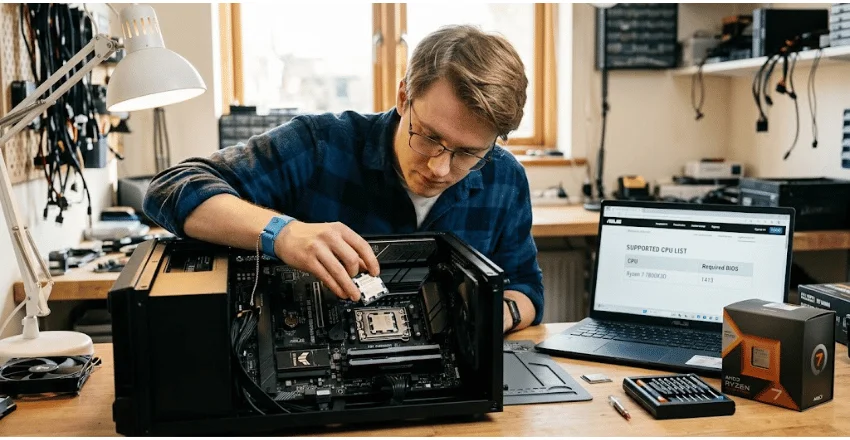
This is where most first-time upgrades stall. A processor fits one socket and one socket only, so an AM5 part will not drop into an AM4 board, however similar the boxes look. Three checks settle compatibility before you spend anything.
- Socket match between the chip you want and the board you already own.
- Chipset support, since a budget chipset can cap power delivery on a high-end part.
- BIOS version, because older boards often need a firmware update before they recognize a newer chip.
Board makers publish a supported-processor list for every model, with the required BIOS version printed beside each entry. Read yours first. Ten minutes there prevents the single most common upgrade failure.
Your next step
Write down the two things your computer does that feel slow, then watch Task Manager while you do them. If the cores sit low while a drive or graphics card pegs, a faster chip fixes nothing. If the cores peg instead, you now know how many you need, how much cache to look for, and roughly what it costs. Check your socket and BIOS version next, and pick the cooler in the same sitting.
Frequently asked questions about CPUs
Not in any practical sense. Electromigration is real, but a desktop chip running at stock settings tends to outlive everything around it. Fans and power supplies fail long before the silicon does.
No. Past a certain point, the rest of the system becomes the limit. If your storage crawls or you play at 4K, a faster part changes very little, and the money belongs elsewhere in the build.
Nothing, in everyday use. The two words mean the same thing, and “central processing unit” is simply the formal version. On phones, that same silicon ships alongside graphics and modem blocks in what vendors call a system-on-a-chip.
Five to seven years suits most people. Games and creative apps slowly drift toward higher core counts, so a mid-range part bought today stays comfortable well past its warranty period.