You click one every few minutes and rarely give it a second thought. So what is a hyperlink, underneath the blue underline? It is a piece of text or an image that carries a hidden address, and selecting it tells your browser to fetch whatever lives at that address.
The short answer
A hyperlink is clickable text, an image, or a button that links to another location. That destination might be another website, a second page on the same site, a spot further down the current page, an email address, or a file. Select it, and the browser loads whatever is waiting at the other end.
Hyperlinks at a glance
| Question | Quick answer |
|---|---|
| Also called | A link or a web link |
| What it holds | A destination address plus the words you see |
| Built from | The HTML anchor tag and its href attribute |
| Usual look | Blue and underlined, purple once visited |
| Mouse clue | The pointer turns into a hand |
| Keyboard route | Tab to it, then press Enter |
| Shortcut to make one | Ctrl+K in most editors, Cmd+K on a Mac |
| Works in | Web pages, email, Word, Google Docs, PDFs, spreadsheets |
Key takeaways
- Every link is two things stuck together: an address, and the words or picture you click.
- Addresses come in two forms: absolute and relative.
- Five types cover nearly everything: text, image, anchor, email, and file.
- The visible words never have to match the destination, which is exactly how fake links fool people.
- Hover over the address in the corner of your screen to read it.
What Is a Hyperlink and What Does One Look Like?
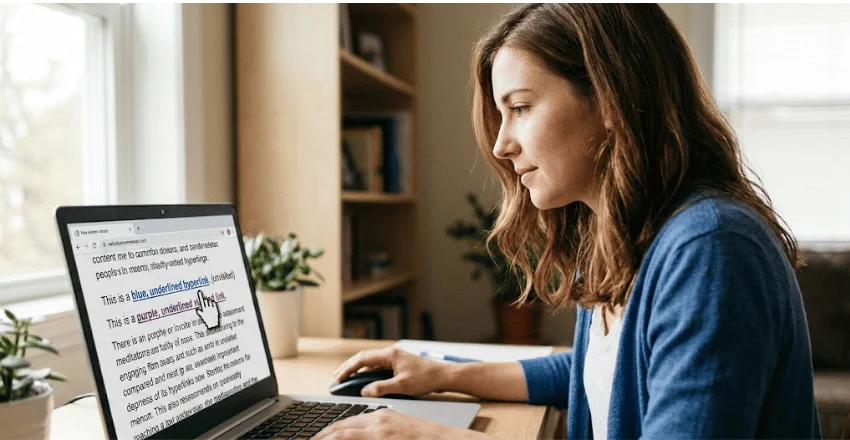
On a web page, the usual signal is color plus an underline. Browsers have painted unvisited links blue and visited ones purple since the early 1990s, and that convention stuck because it works without instructions.
Plenty of sites now break the pattern. Menus and image tiles are links wearing different clothes. The reliable clue is the pointer, not the color. If the arrow flips to a pointing hand, something clickable sits underneath.
Underlines matter more than designers admit. Color alone fails readers with limited color vision and anyone squinting at a screen outdoors. Keeping the underline is the cheapest accessibility win on a page.
The Parts of an Anchor Tag
Behind the visible words sits a short piece of HTML called an anchor tag. Written out, an ordinary one looks like this:
<a href=”https://example.com/setup” title=”Read the setup guide”>our setup guide</a>
Several separate jobs are happening in that one line. Pulling them apart makes the whole thing easier to reason about.
| Part | What it does | Notes |
|---|---|---|
| <a> | Opens the anchor | Short for anchor, the tag that makes anything clickable |
| href | Holds the destination | The address the browser requests. Short for hypertext reference |
| Anchor text | The words you see and click | Sits between the opening and closing tags |
| title | Adds a hover tooltip | Optional, and screen readers treat it inconsistently |
| target | Chooses where it opens | _blank opens a new tab |
| rel | Describes the relationship | Values like nofollow or noopener go here |
The anchor text carries real weight. Search engines read those words to work out what the destination page covers. Screen reader users often skip through a page link by link, hearing nothing else. “Click here” tells both of them nothing.
What Happens the Moment You Click
That jump feels instant, so it is easy to assume nothing much occurs. Quite a lot does, and it runs in a fixed order:
- Your browser reads the address stored in the href.
- That address splits into a domain name and a path.
- It asks a DNS server to turn that domain into a numeric server address.
- Next, it opens a connection to that server and requests the page in the path.
- The server replies with HTML, and drawing begins while images are still arriving.
- The old page is dropped into your history, which is how the back button knows where to send you.
Most of that finishes in under a second on a decent connection. When a page hangs, the delay usually sits at step three or four, not in your device.
Your pointing device also affects the outcome. Middle-clicking opens the destination in a background tab, and Ctrl+click does the same. Shift-click opens a new window. No middle button means no shortcut. That is one small reason to care about picking a decent wireless keyboard and mouse rather than using whatever came in the box.
Absolute and Relative Addresses
This distinction trips up almost every beginner and accounts for a surprising share of broken links.
An absolute address specifies the full path, protocol, and domain: https://example.com/guides/install. It works anywhere. Paste that form into an email, a Word file, or a spreadsheet, and it still resolves to the same page.
A relative address gives only the part that differs from where you already are: /guides/install. The browser fills in the rest from the current page. Relative paths keep a site portable, so a designer can move it from a test server to the real domain without rewriting every address.
Relative paths only make sense inside the site that owns them, and that is the catch. Copy that markup into a newsletter and every address points nowhere. If something works on your test machine but dies once it goes live, check for a stray relative path first.
The 5 Main Types
Different jobs, same anchor tag underneath.
| Type | What it points to | Typical use |
|---|---|---|
| Text | Another page | The standard blue words in a paragraph |
| Image | Another page | A logo that returns you to the homepage |
| Anchor or jump | A spot on the current page | Table of contents entries, back to top buttons |
| A mail app | Opens a blank message to a set address | |
| File | A document or installer | Downloads a PDF or an installer |
Links in Email, Word and Google Docs
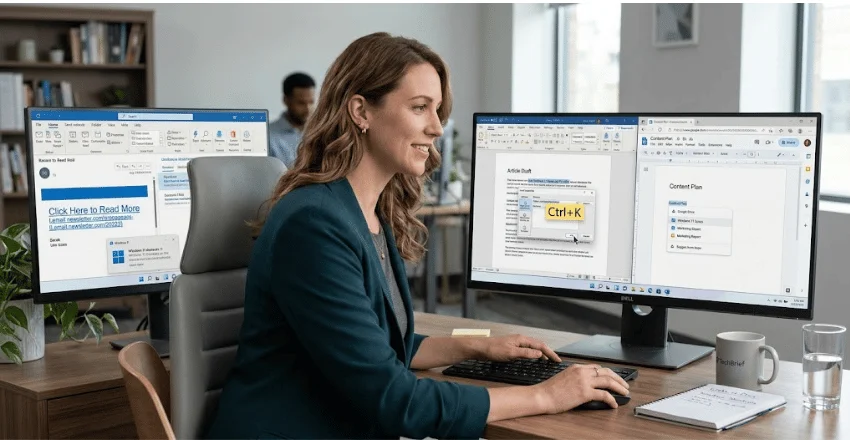
Web pages are not the only place these things live. In Microsoft Word, highlight your text and press Ctrl+K to open the insert dialog. Word also converts a typed address into a live link the moment you press space, which is handy right up until it is not. In Google Docs, the shortcut is identical, and Docs suggests files from your own Drive as you type.
In email, expect the address to be rewritten. Marketing platforms wrap outgoing addresses in their own tracking domain to count clicks. That is why a newsletter link often looks nothing like the site it reaches.
Windows itself uses the idea in two more places. Desktop shortcuts point to a file elsewhere on the disk, and pinned Start menu tiles work the same way. Which edition you run changes what you can do with them, and we cover that in our breakdown of how Windows 11 Home and Pro differ.
A Checklist for Spotting a Spoofed or Malicious Link
Here is the uncomfortable part. The words you see and the address underneath are completely independent. Someone can write your bank’s name as the anchor text while the href points at a server in another country, and nothing on screen gives it away. That gap is the whole basis of a spoofed link.
Run this practical checklist before clicking anything you did not expect. All four checks together take about two seconds, and they catch most malicious links early.
- Hover, do not click. In a desktop browser, the real destination appears in the bottom-left corner. On a phone, press and hold until a preview appears.
- Read the domain from the right. Find the last dot before the first single slash. In secure.yourbank.com.verify-login.net, the actual owner is verify-login.net, not the bank.
- Look for swapped characters. A lowercase L standing in for a capital I, or a zero for the letter O. Lookalike domains rely on you skimming.
- Distrust shortened addresses in messages you did not expect. Shorteners hide the destination by design. That suits the sender fine, and it leaves you with no idea where you will land until the page has already opened.
Your browser and your platform add another layer, flagging known bad destinations before the page loads. That protection varies in strength between platforms, one more thing to weigh if you are still choosing an operating system for a PC. None of it replaces the hover check, though. New spoofed and malicious sites appear faster than blocklist updates can be made.
Broken Links and Why They Matter

A broken link is one whose destination no longer exists, so the server answers with a 404 page instead of content. Pages get deleted. Sites reorganize their addresses. Either one quietly kills every pointer aimed at the old location, and nobody sends a notice when it happens.
For a reader, it is a dead end, and dead ends push people back to search results. For a site owner, the damage compounds. Crawlers burn crawl time on paths that go nowhere, and an unlinked page can drift out of the index.
Free checkers crawl a site and list every failure, and most publishing platforms have a plugin that runs the scan on a schedule. Repairing one is usually a single edit: update the address, or aim it at the nearest surviving page.
Your Next Step
Try the hover check on the next unexpected message in your inbox and compare the words to the address in the corner. If you run a site, add a broken-link scan to the calendar this week. Both habits are small, and both head off trouble that is painful to undo later.
Frequently Asked Questions
Clickable text or an image that takes you somewhere else. The visible part is what you read, and an address hidden in the code is where you land.
A URL is the address itself, the string starting with https. The link is the clickable object wrapped around it. Every link contains a URL, but a URL sitting in a document as plain text is not clickable until something makes it so.
Your browser keeps a record of pages you have opened and restyles anything pointing at them. It is a memory aid, not a status flag. Clear your history, and everything reverts to blue.
Ctrl-click on Windows, or Cmd-click on a Mac. A middle click does the same on either. Page authors can force this with target=”_blank”, though many avoid it because it takes control away from the reader.