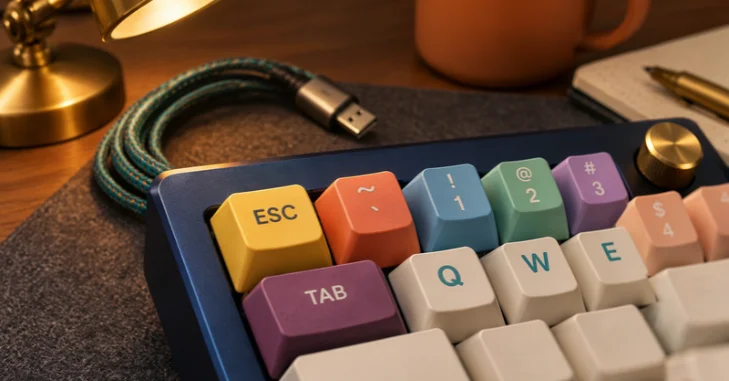
The tilde key types the wavy ~ symbol found in computing, mathematics, writing, and programming. On a standard U.S. keyboard, it sits below Esc and directly left of the number 1. You normally type the symbol by holding Shift while pressing the backtick key.
Quick answer: On most U.S. QWERTY keyboards, find the ~ symbol in the upper-left corner. Press Shift + backtick to type a standalone tilde. The same physical key also produces the grave accent, or backtick, when pressed without Shift.
| Quick fact | Answer |
|---|---|
| Symbol | ~ |
| Common name | Tilde |
| U.S. keyboard location | Below Esc and left of 1 |
| How to type it | Shift + backtick |
| Other symbol on the same key | Backtick or grave accent |
| Common uses | Approximation, programming, command lines, file paths, accents |
| Common problem | Keyboard layout changes how the key behaves |
Key Takeaways
- On a standard U.S. keyboard, ~ shares a physical key with the backtick.
- Press Shift + backtick to type the standalone symbol.
- A tilde before a number commonly means “approximately.”
- Developers also encounter it in commands, paths, code, and configuration files.
- Some international layouts treat it as a dead key for accented letters.
- If it will not appear, check your active keyboard layout before blaming the hardware.
Where Is the Tilde Key on a U.S. Keyboard?
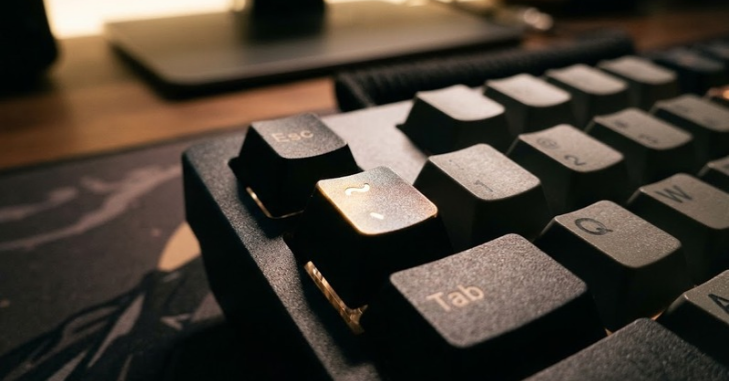
Tilde Key On a full-size U.S. QWERTY keyboard, look toward the upper-left corner. The key normally sits directly below Esc and immediately left of the number 1. Its keycap usually displays both ~ and the backtick symbol.
The exact position can change on compact, laptop, or international layouts. Smaller keyboards sometimes move symbols behind a function layer to save physical space. TechRiyon’s mini keyboard guide explains how reduced layouts can remove or reposition familiar controls.
That location difference matters when following instructions written for another keyboard. A shortcut may be correct while the printed symbols on your keys look different. Always check the active operating-system layout when the expected character does not appear.
How to Type the ~ Symbol on Windows
With the standard U.S. keyboard layout in Windows, hold Shift and press the backtick key. The result should be a standalone ~ character. Pressing the physical key without Shift normally produces a backtick instead.
If that combination behaves differently, check your language and keyboard configuration. Windows can have several layouts installed even when you use only one language. Switching layouts can change what a physical key produces.
Some applications also provide symbol insertion tools as an alternative. Microsoft documents keyboard combinations for accented letters and other international characters. For example, Microsoft Word supports a tilde-based shortcut for characters such as ã, ñ, and õ.
How to Type a Tilde on a Mac
Mac keyboard behavior depends on the selected keyboard language and physical layout. On many U.S. keyboards, Shift with the backtick key produces the standalone symbol. International input sources can assign different behavior to the same physical position.
Apple users should first confirm which input source is active. Switching from one regional layout to another can move punctuation or change modifier combinations. The Keyboard Viewer can also help identify the correct key when printed labels do not match.
This difference becomes important for people who regularly change languages. A shortcut copied from a Windows guide may not map exactly to macOS. Always follow the shortcut for the input source currently selected on your Mac.
Typing ~ and Accented Letters Like ñ and ã
Standard shortcuts differ by device, so use the one that matches your setup. Each method below types either the standalone ~ symbol or a letter that carries a tilde.
Windows Alt Codes
Alt codes work only with the numeric keypad, not the number row. Turn on Num Lock, hold Alt, type the digits, then release Alt.
- Alt + 126 types ~.
- Alt + 164 types ñ, and Alt + 165 types Ñ.
- Alt + 0227 types ã, and Alt + 0195 types Ã.
Laptops without a keypad usually cannot use Alt codes. In that case, use the US-International layout or the Character Map instead.
Windows US-International Layout
Add the United States-International keyboard in Windows language settings. With it active, the ~ key becomes a dead key. Press Shift + backtick, then a letter such as n, to type ñ. Press ~ and then Space to type a standalone tilde.
Mac Option Shortcuts
On a Mac, press Option + N, release both keys, then press n to type ñ. Press a after Option + N to type ã. To type the standalone mark with this method, press Option + N and then Space. The Shift + backtick shortcut also works on a U.S. layout.
Chromebook
A Chromebook with a U.S. keyboard types ~ with Shift and the backtick key. For accented letters, add the US International keyboard in Settings. You can also press Ctrl + Shift + U, type 00f1, then press Enter to insert ñ.
iPhone and Android
On iPhone, tap the numbers key, then the symbols key to find ~ on the second symbols page. On Android with Gboard, open the symbols page and look for it on the second page. To type ñ or ã on either phone, press and hold the n or a key, then slide to the accented letter.
UK and Other Keyboard Layouts
On a UK keyboard, the ~ symbol sits on the key beside Enter, which also shows #. Press Shift + # to type it. Many European layouts use AltGr instead. On a German keyboard, for example, press AltGr with the plus key. Check the printed keycaps for a third symbol on the right side.
What Does the ~ Symbol Mean?
In everyday writing, a tilde before a number often means approximately or around. For example, ~20 minutes generally means about 20 minutes rather than exactly 20. This use is simple and appears in informal technical writing.
The character has a longer linguistic history as a diacritical mark. It appears above letters in several writing systems and languages. Spanish ñ is one familiar example for U.S. readers.
Computing gives the symbol several additional meanings. Its purpose depends on the software, programming language, shell, or syntax using it. That is why developers usually interpret it from context rather than assigning one universal meaning.
Tilde vs. Backtick: What Is the Difference?
The tilde ~ and backtick are separate characters. They often share one key on U.S. keyboards, which causes much of the confusion. Shift usually selects the upper character printed on that key.
A backtick is also called a grave accent in some contexts. It appears in programming languages, Markdown, command-line tools, and other technical environments. A tilde has different meanings and should not be substituted automatically.
This distinction matters when entering code or commands. Software can interpret one character correctly while rejecting the other. TechRiyon’s text editor guide covers tools that make code and special characters easier to inspect.
Common Uses of the Tilde Symbol
Developers frequently encounter ~ while working with command-line tools and Unix-like operating systems. In many shell environments, the character represents a user’s home directory, so a path such as ~/Documents points to the Documents folder inside it. Older web conventions also used it in addresses for personal directories on Unix-based servers.
Programming languages can give the character different jobs. Depending on the language, it may act as an operator, part of a pattern, or special syntax. Beginners should check the documentation for the specific language they are using.
If these uses are new, understanding basic code syntax makes them easier to recognize. TechRiyon’s beginner coding guide explains how symbols become part of computer instructions. A good editor can then help you identify whether you entered ~, a backtick, or another similar character.
The symbol also appears outside programming. Writers use it for approximation, while language input methods can use it to create accented letters. Its meaning always depends on the surrounding text or application.
Why the Tilde Sometimes Does Not Appear
A missing symbol does not always mean your keyboard is broken. The active layout may treat that keystroke differently from standard U.S. QWERTY. International layouts can also use certain punctuation marks as dead keys that wait for another character.
For example, a dead-key layout may wait after you press ~. Pressing a supported letter afterward can create an accented character such as ã or ñ. Pressing Space after the accent can produce the standalone symbol on some layouts.
Testing the key in a plain-text application can help narrow the problem. If it works there, a specific program may be intercepting the shortcut. If it fails everywhere, investigate the keyboard layout, modifier keys, or hardware next.
How to Fix a Tilde That Types the Wrong Character
Start by checking the language indicator in your operating system. Confirm that the selected layout matches the keyboard physically in front of you. A U.S. keyboard paired with another regional mapping can produce unexpected punctuation.
Next, test both the physical keyboard and the operating system’s virtual keyboard. This comparison can help separate a hardware issue from a software mapping problem. Try a basic text field instead of a game or specialized program during the test.
Then review any remapping utilities, gaming software, or custom shortcut applications. These tools can assign another action to the same keystroke. Restoring the default mapping often resolves unusual behavior.
Your operating system also influences how layouts and input sources are managed. TechRiyon’s PC operating system guide provides more background on Windows, macOS, Linux, and ChromeOS. Understanding that layer can make keyboard troubleshooting much faster.
Does the Tilde Have Special Uses in Gaming?
Some PC games use ~ to open a developer console or command interface. That behavior depends entirely on the game and its configuration. It is not a universal gaming shortcut.
The physical position makes the key convenient for games that need quick access to an extra command. It sits close to movement keys without taking a common letter key away. Players can also bind it manually when a game supports custom controls.
Compact gaming keyboards may complicate this arrangement. Some layouts hide less-used symbols behind function layers. Check the manufacturer’s key map before assuming the control is missing.
The Bottom Line
The ~ symbol is easy to type once you know where to look. On most standard U.S. keyboards, use Shift plus the backtick key beside the number 1. Differences usually come from regional layouts, compact designs, or software remapping.
Its meaning ranges from “approximately” in ordinary writing to specialized syntax in computing. Knowing the difference between a tilde and a backtick also prevents frustrating mistakes in code and commands. These small details become more useful as you work with technical tools.
For more practical keyboard and computer guides, keep exploring the TechRiyon guides linked above. Better keyboard habits and a capable editor make symbols like this much easier to handle in everyday computer work.
Frequently Asked Questions
Where is the tilde key on a keyboard?
On a standard U.S. QWERTY board, the tilde key is below Esc and left of the number 1. It usually shares its keycap with the backtick character. Hold Shift while pressing that physical key to produce ~.
How do I type ~ on a U.S. keyboard?
Hold Shift and press the key that also contains the backtick. It normally sits immediately left of the number 1. If that does not work, confirm that Windows or macOS is using the expected U.S. layout.
What does ~ mean before a number?
A tilde before a number usually means approximately, roughly, or around. For example, ~50 miles indicates an approximate distance. The exact interpretation can still depend on technical context.
Are the tilde and backtick the same symbol?
No, they are two separate characters despite sharing a key on many U.S. keyboards. The wavy character is a tilde, while the angled mark is a backtick or grave accent. Software may treat them very differently.
Why do I have to press Space after typing ~?
You may be using an international layout that treats the symbol as a dead key. The system waits to see whether you want an accented letter next. Pressing Space can produce the standalone character on supported layouts.
—–