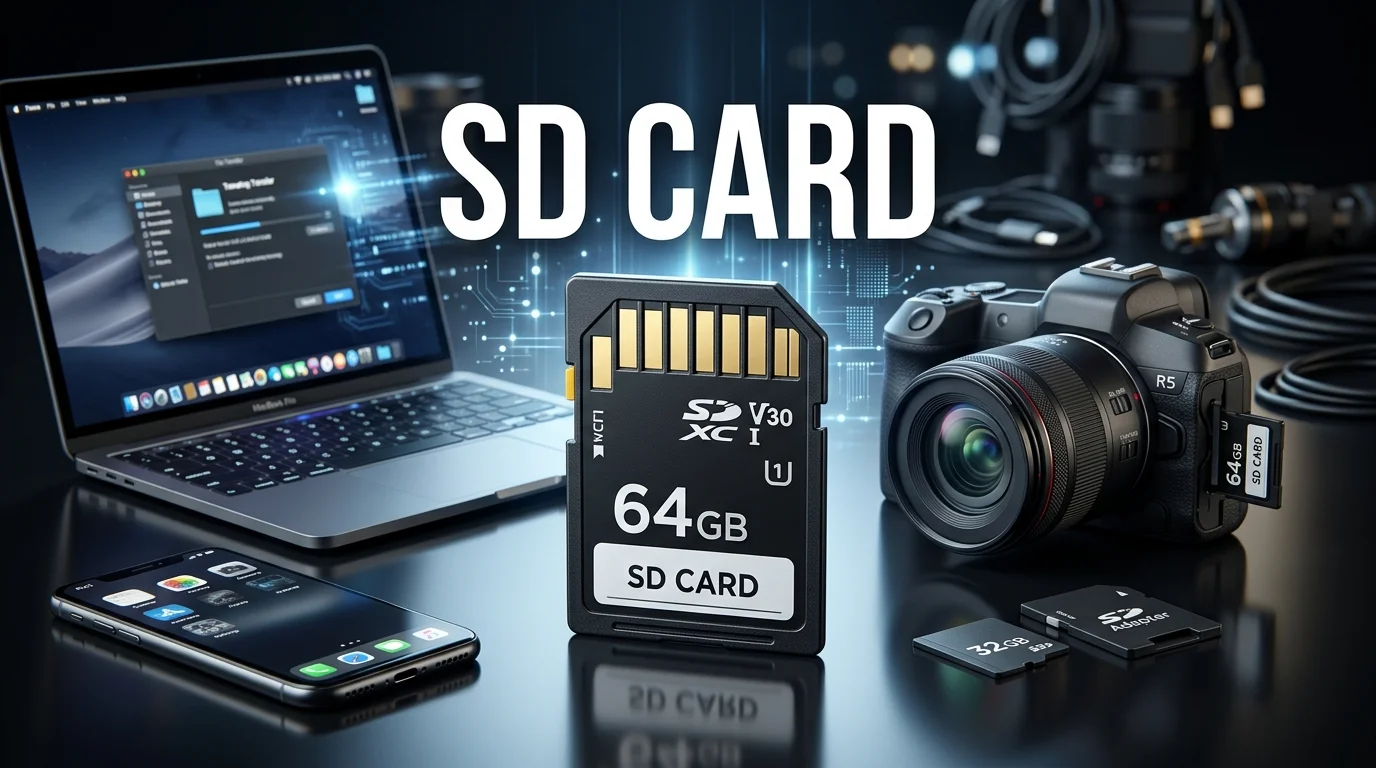
An SD card is a removable flash memory card used to store photos, videos, audio, apps, and files in cameras, computers, drones, gaming systems, and other devices. The right choice depends on four things: physical size, capacity standard, speed rating, and the compatibility limits of the device that will use it.
| What to check | What it tells you |
|---|---|
| Physical format | Whether you need full-size SD or microSD |
| Capacity standard | Whether the card is SD, SDHC, SDXC, or SDUC |
| Speed class | The minimum sustained write performance |
| Bus interface | How quickly the card can communicate with compatible hardware |
| A1 or A2 rating | Performance for apps and small-file workloads |
| Device support | The formats, capacities, and speeds your hardware accepts |
The SD Association defines full-size SD and microSD as the two commonly used form factors today. Capacity standards range from SD to SDUC, while several separate symbols describe speed and application performance.
Key takeaways
- Check your device before buying. A newer or faster memory card cannot add support that the host hardware lacks.
- SDHC, SDXC, and SDUC primarily define capacity ranges and their associated file systems.
- C, U, and V symbols describe minimum write-performance classes.
- UHS-I and UHS-II describe the bus interface and are not the same as U1 or U3.
- A1 and A2 matter most when applications require frequent random reads and writes.
- For valuable files, removable flash storage should not be your only copy.
What is Secure Digital memory used for?
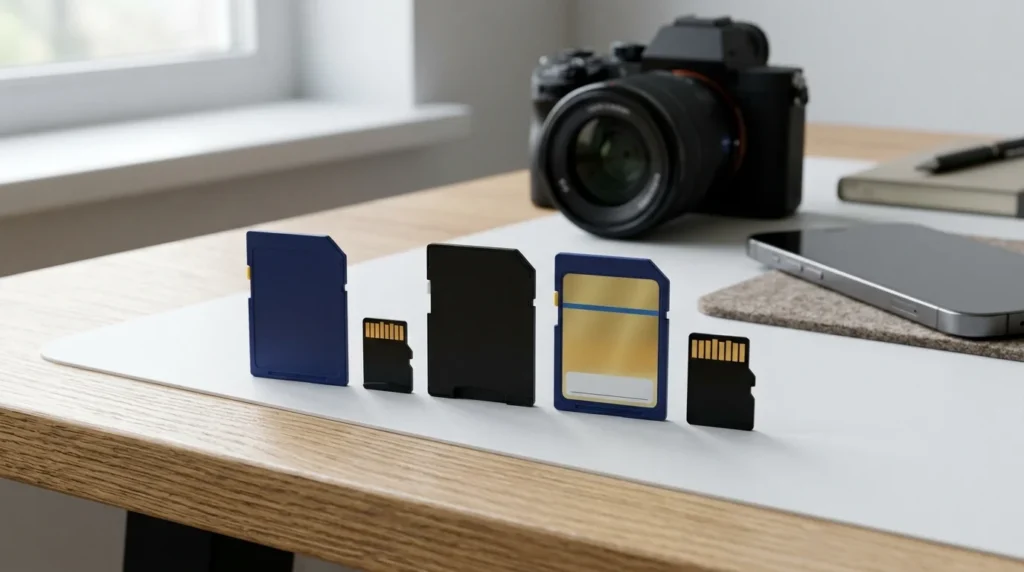
Secure Digital is a removable flash-storage format. Full-size cards are common in cameras, laptops, audio equipment, and other electronics. The smaller microSD format is widely used in compact devices such as phones, drones, action cameras, and gaming hardware.
The appeal is simple. You can add storage without opening the device or replacing its internal drive. You can also remove the media and transfer files with a compatible reader.
That does not mean every device accepts removable storage. For example, Techriyon’s coverage of the iPad 10th generation notes that the model has fixed internal storage and no microSD slot. Checking the hardware specifications first prevents you from buying storage that your device cannot use.
SDHC, SDXC, and SDUC capacity standards explained
Capacity logos are among the easiest parts of the label to understand.
| Standard | Capacity range | Default file system |
| SD | Up to 2GB | FAT12/FAT16 |
| SDHC | More than 2GB to 32GB | FAT32 |
| SDXC | More than 32GB to 2TB | exFAT |
| SDUC | More than 2TB to 128TB | exFAT |
These ranges come from the SD Association’s current standard overview.
For most modern consumer equipment, SDHC and SDXC are the names you are most likely to encounter. A 32GB product falls within SDHC, while capacities above 32GB generally use SDXC up to the 2TB limit.
Capacity also affects compatibility. You should not assume that a device designed only for older SDHC media will support an SDXC product. SanDisk’s compatibility documentation likewise advises checking the host logo and supported standard.
Full-size SD vs. microSD
Full-size SD and microSD media can use the same capacity families and many of the same speed ratings. The main difference is physical size.
A microSD card can often be inserted into a passive full-size adapter. This allows it to fit equipment with a standard-size slot. The adapter does not remove the host device’s capacity or speed limits.
Choose the format that the device was designed to accept. Do not assume that a physical adapter guarantees full compatibility.
For laptop users who work with cameras, built-in readers can make file transfers easier. Techriyon’s workstation laptop guide includes systems with SD or SDXC reader support, while its MacBook Pro alternatives guide discusses Windows laptops that provide built-in card slots alongside other ports.
How to read an SD card label
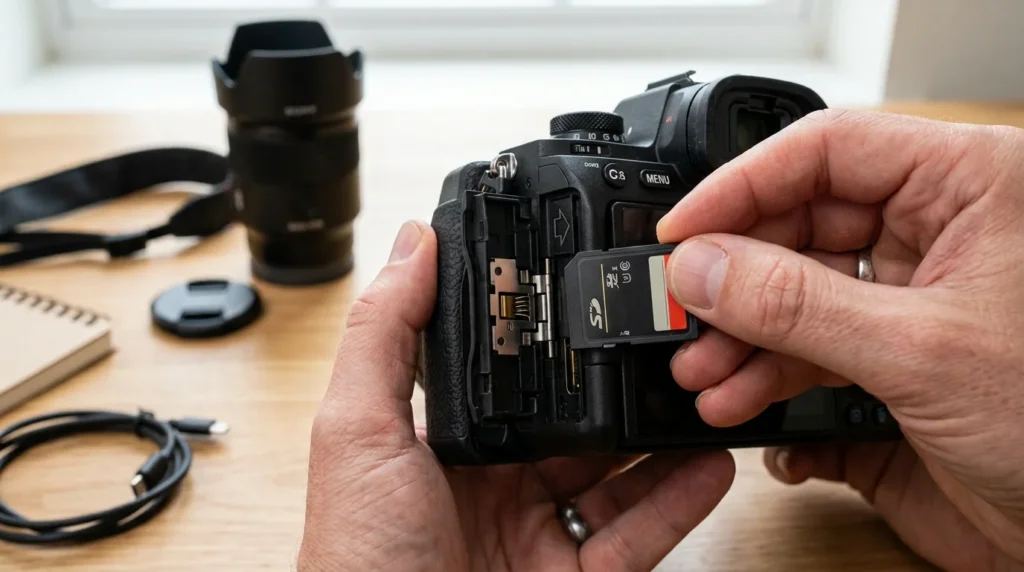
A small label can carry several different performance symbols. They are easier to understand when you separate them into categories.
C10, U1, U3, V30, V60, and V90
The traditional Speed Class uses a number inside a C. Class 10 indicates a minimum sequential write speed of 10 MB/s.
UHS Speed Class uses the U symbol. U1 represents a minimum sustained write speed of 10 MB/s. U3 represents a minimum sustained write speed of 30 MB/s.
Video Speed Class uses a V followed by the minimum write-speed figure. The standard includes V6, V10, V30, V60, and V90. The numbers correspond to minimum write speeds of 6, 10, 30, 60, and 90 MB/s.
These are minimum class guarantees, not promises that every transfer will run at one fixed speed.
UHS-I and UHS-II
The Roman numeral refers to the bus interface.
UHS-I has a theoretical interface ceiling of up to 104 MB/s. UHS-II raises that ceiling to up to 312 MB/s. Real-world performance depends on both the memory card and the host device.
A fast UHS-II product placed in UHS-I hardware cannot take full advantage of the UHS-II interface. This is why buying the highest number on the shelf can be a waste of money when the host device is the limiting factor.
What A1 and A2 mean
A1 and A2 are Application Performance Classes. They focus on workloads that involve random access, such as running applications from removable storage.
The SD Association states that A2 has higher random-performance requirements than A1. Full A2 performance also requires support from both the card and the host device.
If your main task is recording video, pay closer attention to sustained write speed and Video Speed Class. If you plan to run supported apps from removable storage, A1 or A2 becomes more relevant.
Which capacity and speed should you choose?
Start with your device manual, then match the storage to the workload.
| Use | What to prioritize | Practical starting point |
| Everyday photos and files | Capacity and compatibility | SDHC or SDXC supported by the device |
| 4K recording | Sustained write performance | Look for the speed class required by the camera; U3/V30 is common in 4K-capable products |
| Demanding video workflows | Higher sustained write speed | V60 or V90 when the camera requires it |
| Fast camera transfers | Host and bus support | UHS-II only pays off when both the reader and device support it |
| App storage | Random read/write performance | A1 or A2 where the host supports application storage |
The SD Association recommends matching thehost’ss required speed-class symbol with the same or a higher class within that system. Device requirements still take priority.
For 4K and other data-heavy recording tasks, current memory-card guidance also emphasizes write speed over the larger read-speed number often printed in marketing materials.
Check compatibility before you buy
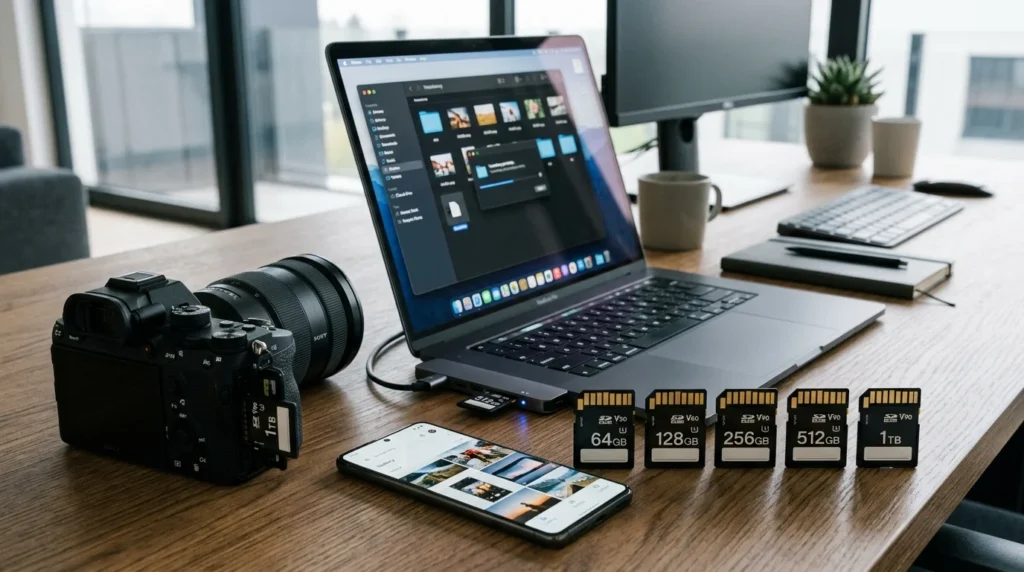
Use this four-step checklist before ordering new removable storage:
- Confirm the physical slot. Determine whether the device takes standard-size SD or microSD media.
- Find the maximum supported capacity. An older host may stop at SDHC even though larger products physically fit.
- Check the required speed class. Cameras often state a minimum class for specific recording modes.
- Check the bus interface. Paying for UHS-II makes little sense when the host only supports UHS-I performance.
Newer hosts commonly support older capacity standards, but the reverse is not guaranteed. Kingston and SanDisk both advise matching the standard to the device rather than relying on physical fit alone.
Protect the files stored on removable media.
Portable flash storage is convenient, but it should not become the only place where you keep important photos, videos, or documents.
Copy valuable files to another storage location after important shoots or projects. If you need a longer-term storage plan, Techriyon’s guide to file archiving versus cold storage explains why active storage, archives, and backups serve different purposes.
If a device starts reporting errors, stop adding important files until you have copied any recoverable data elsewhere. Then check the manufacturer’s formatting and compatibility instructions.
Frequent recording workloads, such as those from cameras that overwrite footage repeatedly, also require more attention than occasional file storage. Treat removable media as replaceable equipment rather than permanent archival storage.
Your next step
Before buying, open the specification page or manual for the device you plan to use. Write down its supported physical format, maximum capacity, capacity standard, required speed class, and bus interface.
Then choose a reputable product that meets those requirements. Extra capacity can be useful. Extra speed only helps when your hardware can use it.
Frequently asked questions
Its interface supports a higher theoretical transfer ceiling, but you need compatible hardware to benefit from it. A UHS-II product in a UHS-I host operates within the host’s limits.
Both indicate a minimum sustained write speed of 30 MB/s, but they belong to different classification systems. When a device specifies a particular class system, follow that requirement.
Not automatically. SDXC supports higher capacities, while SDHC tops out at 32GB. The better choice is the standard that your device supports at the capacity you need.
Choose based on the host device and workload. A2 has higher application performance requirements, but the SD Association notes that achieving full A2 performance requires an A2-compatible host.